> For the complete documentation index, see [llms.txt](https://documentation.ajaxsearchpro.com/llms.txt). Markdown versions of documentation pages are available by appending `.md` to page URLs; this page is available as [Markdown](https://documentation.ajaxsearchpro.com/compatibility-settings.md).
# Compatibility Settings
Javascript, CSS, styling, fonts and other compatibility settings
### What is Compatibility?
The **Compatibility** menu collects the settings used to make Ajax Search Pro work smoothly alongside your **theme, other plugins, and hosting environment**.
{% hint style="info" %}
**Most sites never need to touch these.** The defaults work for the vast majority of setups. Reach for Compatibility when something specific is wrong — the search box looks broken under your theme, the search stops working after AJAX page navigation, results are missing because of a database collation quirk, and so on. Change one setting at a time and test.
{% endhint %}
You'll find it under **Ajax Search Pro → Compatibility** in the WordPress admin menu, organised into four panels:
* **CSS & JS** — styling and front-end behaviour compatibility.
* **CSS & JS Loading** — how and where assets are delivered.
* **Query** — database/query character-set and validation tweaks.
* **Other** — REST API and meta-box integration.
Each panel has a **Save** button and a shared **Reset to defaults** (see [Saving & resetting](http://localhost:63342/markdownPreview/1738519729/markdown-preview-index-u1lmqgqm875fjrdbdm4f3e7g0u.html#saving--resetting)).
***
### CSS & JS
Styling and front-end behaviour compatibility with your theme:
* **Prevent body scrolling on mobile when results are open** — stops the background page from scrolling while the results box is open on touch devices.
* **Detect AJAX powered themes** — enable if your theme loads pages via AJAX and the search stops working after navigating between pages.
* **CSS compatibility level** — **Low / Medium / Maximum**. Increase it if the search box styling conflicts with your theme (higher levels make the plugin's CSS more specific so it wins over theme styles).
* **Minify CSS output** — minimizes the generated CSS to reduce its size.
* **Load Google Fonts** — loads the Google Fonts used by the search themes; disable if you manage fonts yourself.
* **Use custom AJAX handler** — uses a custom AJAX handler that bypasses part of the WordPress loading process for faster responses. Faster, but may not work with some plugins or themes.
***
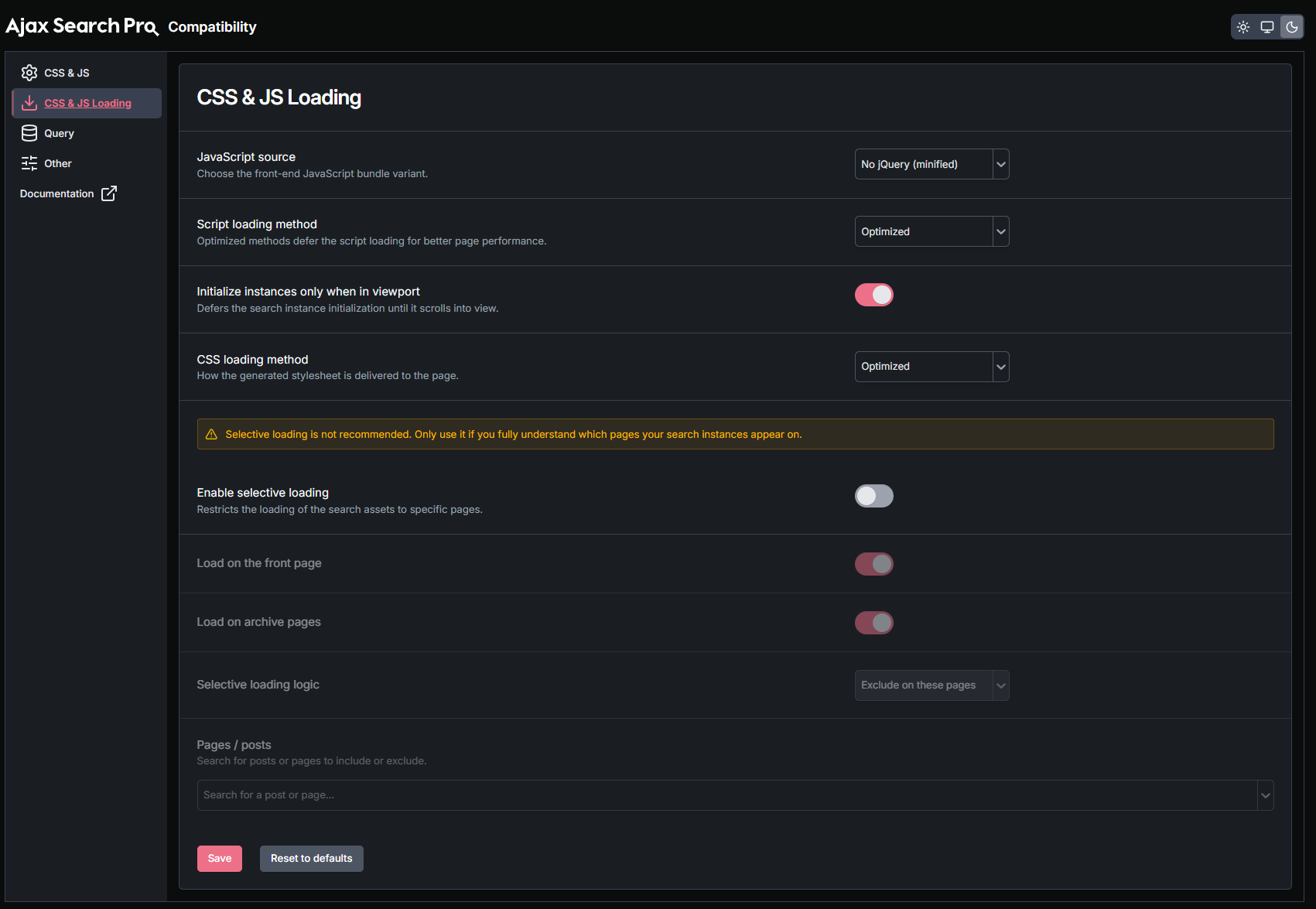
### CSS & JS Loading
Controls **how and where** the search assets are delivered:
* **JavaScript source** — the front-end JavaScript bundle variant: **No jQuery (non-minified)** or **No jQuery (minified)**.
* **Script loading method** — **Classic / Optimized / Optimized + Async**. The optimized methods defer script loading for better page performance.
* **Initialize instances only when in viewport** — defers initializing a search instance until it scrolls into view (helps page load when search bars are far down the page).
* **CSS loading method** — how the generated stylesheet is delivered: **Optimized / Inline / File**.
#### Selective loading
By default the search assets load everywhere they might be needed. **Selective loading** lets you restrict them to specific pages.
{% hint style="warning" %}
**Not recommended.** Only use selective loading if you fully understand which pages your search instances actually appear on — restricting too aggressively will break the search where it's needed.
{% endhint %}
* **Enable selective loading** — turns the feature on (the options below are disabled until it is).
* **Load on the front page** / **Load on archive pages** — quick toggles for those page types.
* **Selective loading logic** — **Exclude on these pages** or **Include only on these pages**.
* **Pages / posts** — search for and pick the posts/pages the logic above applies to.
***
### Query
Database and query tweaks to work around character-set and collation issues. These mostly matter for **multibyte / accented languages** or unusual database configurations:
* **Soft query check** — uses a less strict query validation. Try this if results are unexpectedly missing.
* **Use ACF `get_field()`** — reads custom field values through ACF's `get_field()` function instead of direct database access (use when ACF formats or stores values in a way direct access misses).
* **Force database collation case** — **None / Force case sensitivity / Force case insensitivity** — to work around collation issues where searches match too much or too little.
* **Force UNICODE on queries** — forces the UNICODE charset on search queries; may help with multibyte languages.
* **Force UTF8 on LIKE queries** — forces the UTF8 charset on `LIKE` comparisons; may help with accented characters.
***
### Other
Integration toggles:
* **Enable the REST API endpoint** — exposes the search via the WordPress REST API (for headless or custom front-end integrations).
* **Display the Ajax Search Pro Meta Boxes on these post types** — choose which post types show the Ajax Search Pro meta boxes in the post editor.
***
### Saving & resetting
* **Save** — stores the changes on the current panel.
* **Reset to defaults** — restores **all** compatibility settings (across every panel) back to their defaults. It asks for confirmation first.
***
### Tips & notes
* **Only change what you need.** These settings exist to fix specific conflicts — if your search works fine, leave them at their defaults.
* **Change one thing at a time.** When troubleshooting, adjust a single setting, save, and test before trying another, so you know what actually fixed (or broke) things.
* **Styling conflicts?** Try raising the **CSS compatibility level** first; **Maximum** makes the plugin's styles the most resistant to theme overrides.
* **Search breaks after navigation on an AJAX theme?** Enable **Detect AJAX powered themes**.
* **Missing results with accented/multibyte text?** Try the **Query** panel's UNICODE / UTF8 / soft query check options.
* **Avoid selective loading** unless you're certain which pages need the search assets.